AdGuard Mail versions
Version 1.6.2
October 30, 2026
Every little fix matters. We took care of a few bugs here and there — nothing dramatic, but the app is better for it.
Version 1.6.1
September 10, 2026
Not all updates are flashy, but they’re still important. This release focuses on the small but crucial fixes that keep things running as they should.
Version 1.6
August 10, 2026
Your feedback is what makes AdGuard Mail better with every release. That’s why we focused on making it easier for you to reach us.
Reporting an alias issue is now more convenient: just fill out a quick form that you can access from the Aliases screen. We’ve also added an option to view release history, improved a few UI elements, and honed the in-app review flow.
Report alias issues from the app
Previously, if a website or service didn’t accept your alias, you had to describe the issue from scratch to send it to support. Now, there’s a simpler way: a couple clicks and a simple form to fill out.
Go to Aliases and click the exclamation mark icon in the top-right corner.
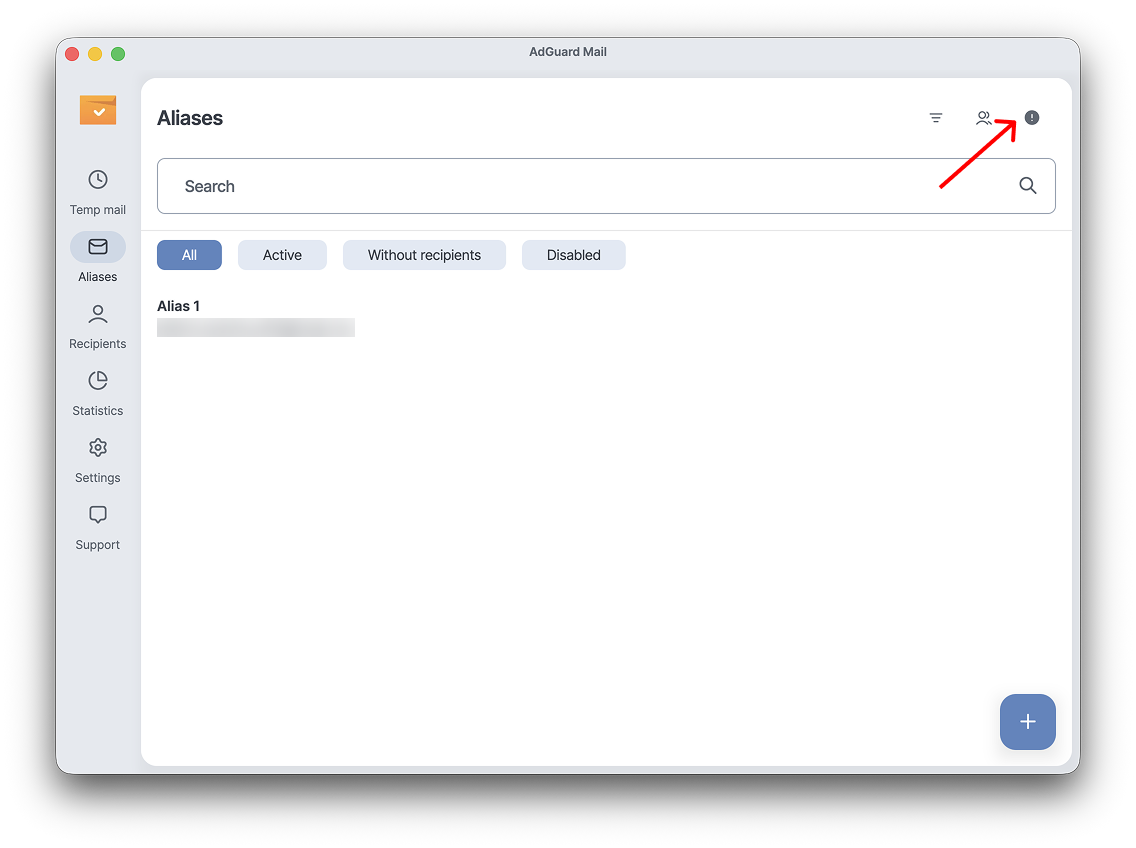
If a website or service won’t accept your alias, choose Address not accepted by the website in the pop-up window. You’ll then be taken to the AdGuard Mail feedback form.
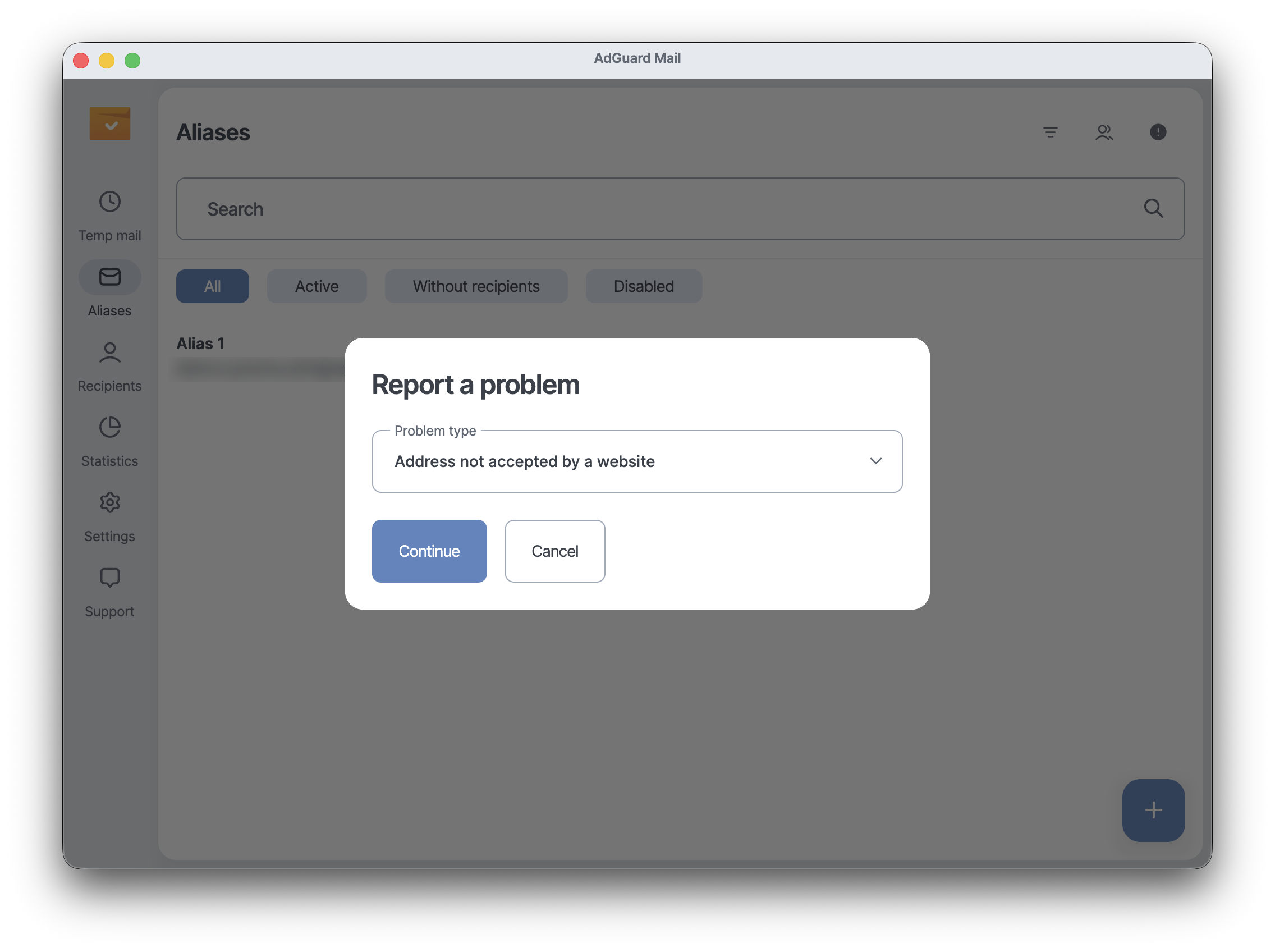
For any other issue, click Other, then Continue. You’ll be able to describe the issue in detail and send it to our support team.
Keep track of all changes
We’ve made it easier to access our update history and see the fixes and improvements included in each version. Go to Settings → About → Version history to view the full release history.
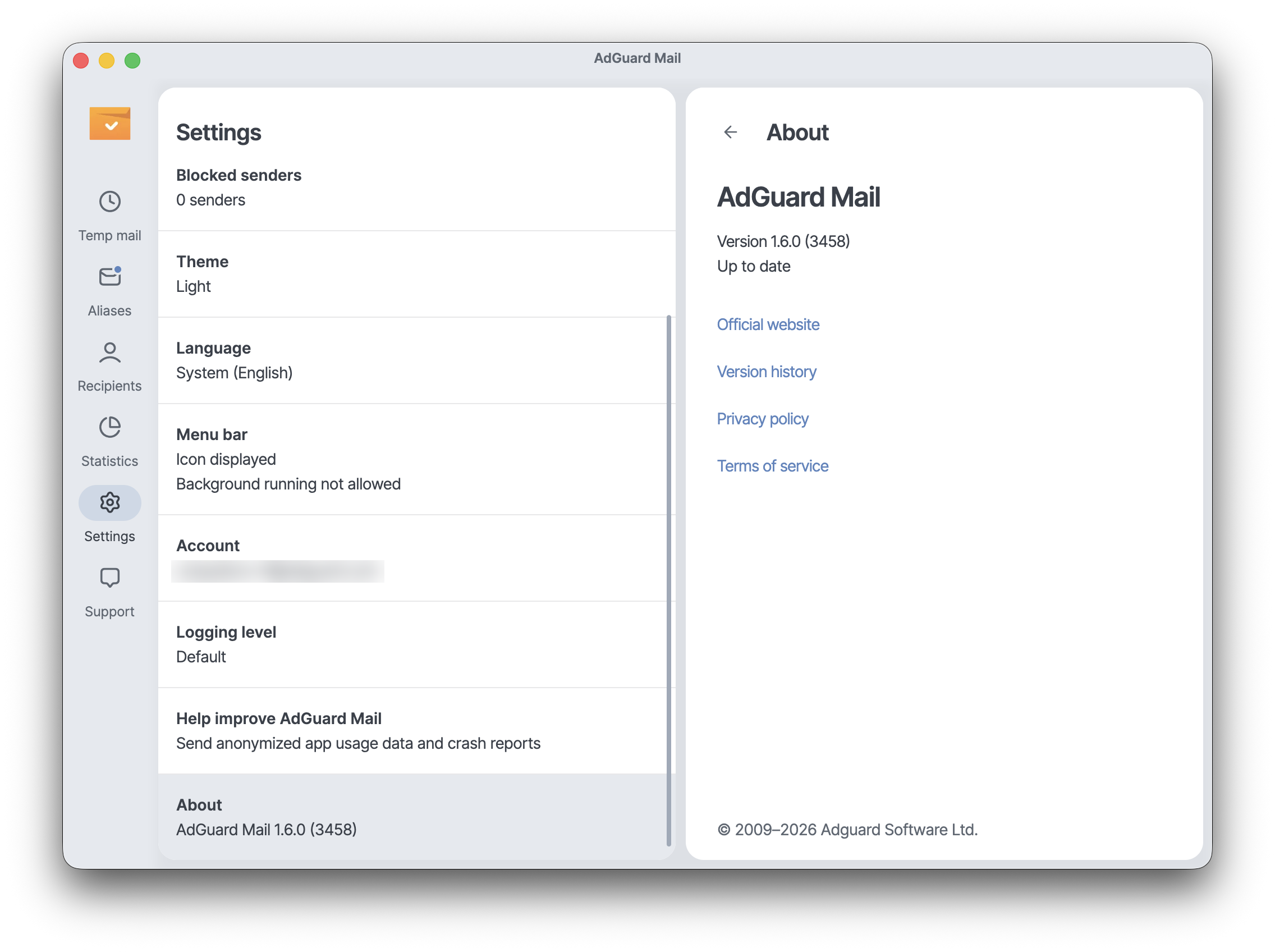
Improved logs and review flow
We’ve improved the process for saving app logs on mobile devices. Go to Support → Export logs and system info, then tap Save. You’ll see a Logs exported notification — with an option to share the logs via email or any other preferred method.
We’ve also honed our in-app review flow. Just like with other added features, our main goal is to improve interaction with our users and make sure our team can act on feedback faster.
Changelog
Improvements
Added a new flow to report alias issues
Added version history
Added a Logs exported notification with an option to share logs on mobile
Improved the in-app review flow
Version 1.5.1 (iOS and macOS only)
July 9, 2026
This update is pretty low-key: just a couple of tweaks under the hood to keep the app performing well.
Version 1.5
June 1, 2026
We gave AdGuard Mail a small makeover: v1.5 brings a cleaner interface, easier navigation, and in-app update notifications. We also gave Temp mail a more central place in the user experience.
Version 1.4.3 (iOS and macOS only)
May 21, 2026
This is a technical update aimed to increase the app stability and fix minor bugs.
Version 1.4.2
April 6, 2026
This is a technical update aimed to increase the app stability and fix minor bugs.
Version 1.4.1
April 6, 2026
This is a technical update aimed to increase the app stability and fix minor bugs.
Version 1.4
March 17, 2026
This is a technical update aimed to increase the app stability and fix minor bugs.
Version 1.3.1 (iOS only)
February 24, 2026
This is a technical update aimed to increase the app stability and fix minor bugs.
Version 1.3
December 10, 2025
The app now runs more smoothly thanks to this minor update, which fixes a number of bugs.
Version 1.2
October 14, 2025
We are pumping up Temp mail based on your feedback. In the full version, you can now:
• Choose from 3 domains when creating an address. This comes in handy if a service doesn’t accept one domain — just try another.
• Create up to 5 inboxes if a single one is not enough. You can use them all at the same time.
And for all users: Manually forward emails to your personal address whenever you want to save a message without downloading it.
Version 1.1
August 12, 2025
We’ve listened to your feedback and made some small but useful updates:
• Aliases can now be filtered by status — active or disabled — and by whether they’re linked to a recipient.
• Recently edited aliases and recipients appear at the top of the list.
• Statistics show how many emails weren’t forwarded due to free version limits — helpful to understand if you’re using aliases actively enough to consider a subscription.
• You can now manually refresh statistics to see changes right away.
Version 1.0
June 24, 2025
Meet AdGuard Mail v1.0 — with features you’ve been asking for and a subscription option.
• Email replies. Reply to emails sent to your aliases while keeping your real address private
• New alias domains. Choose from multiple domains to increase your chances of signing up anywhere
• Subscription. Subscribe through your app store to unlock these and other advanced features and fine-tune email forwarding
Thanks for using AdGuard Mail and helping us improve!
Version 0.10.6
April 28, 2025
This update brings several UX and UI improvements to make AdGuard Mail even more user-friendly. We’ve also made some bug fixes to improve overall stability.
Version 0.10
March 20, 2025
This update brings several UX and UI improvements to make AdGuard Mail even more user-friendly. Now you can search FAQ by keyword instead of scrolling through every answer, check how many emails blocked senders have still tried to send you, and get a notification in Temp Mail emails when an attachment has been removed. We’ve also made some bug fixes to improve overall stability.
Version 0.9
January 27, 2025
This update brings several UX and UI improvements to make AdGuard Mail even more user-friendly. We’ve also made some bug fixes to improve overall stability.
Version 0.8
December 19, 2024
This update brings several UX and UI improvements to make AdGuard Mail even more user-friendly. We’ve also made some bug fixes to improve overall stability.